
📱 How to Stop Background App Activity on Android
Is your Android phone battery draining faster than usual? Are some apps using mobile data even when you are not actively using them?
Unnecessary background app activity can sometimes contribute to battery and data usage. The good news is that Android provides several settings that can help you manage how applications work in the background.
In this guide, you will learn how to stop background app activity on Android, how to restrict background data, how to identify apps using excessive battery, and what you should know before restricting an application.
🔍 What Is Background App Activity?
Background app activity means an application is performing certain tasks even when you are not currently using it on the screen.
Depending on the application, background activity can include checking for new notifications, synchronizing information, refreshing content, uploading or downloading data, and performing other tasks.
For example, an email application may check for new messages in the background, while a messaging application may need background access to deliver notifications.
⚡ Why Should You Control Background Apps?
Managing unnecessary background activity can help you get better control over your smartphone's resources.
It may help you:
✔ Manage battery consumption
✔ Reduce unnecessary mobile data usage
✔ Control apps that run in the background
✔ Identify applications using excessive resources
✔ Improve overall control over smartphone settings
⚙️ How to Stop Background App Activity on Android
The exact menu names can vary depending on your Android version and smartphone manufacturer. However, the following method works as a general guide on many Android devices.
Open the Settings application on your Android smartphone.
Tap Apps, Apps & Notifications, or a similar option available on your phone.
Find the application whose background activity you want to control and open its App Info page.
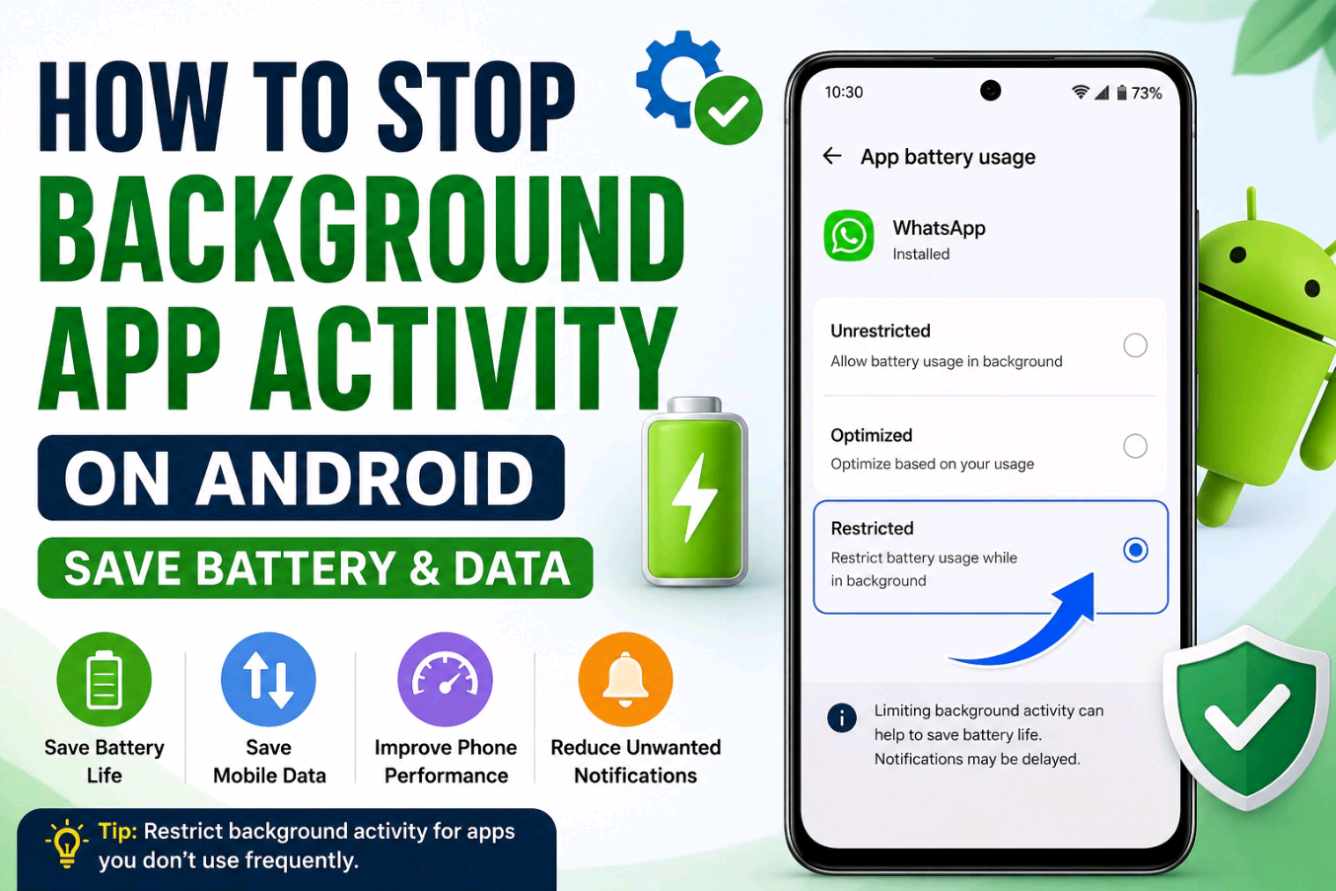
Look for Battery, Battery Usage, or App Battery Usage.
If your device provides options such as Unrestricted, Optimized, or Restricted, select the option that best suits your needs.
🔋 How to Find Apps That Are Using Too Much Battery
If you do not know which application is responsible for high battery consumption, Android's battery settings can help you identify resource-heavy apps.
On many devices, you can go to:
Settings → Battery → Battery Usage
You may then see a list of applications and their battery usage. Review the list and pay attention to apps that consume significant battery even though you rarely use them.
📶 How to Stop Background Data Usage
Battery usage is not the only concern. Some applications may also consume mobile data while running in the background.
Depending on your smartphone, you may find the relevant settings under:
Settings → Network & Internet / Mobile Network → Data Usage → App Data Usage
Select the application you want to review and look for options related to background data.
The exact location and name of this option can differ between Android devices.
🚫 Should You Restrict Every Background App?
No. Restricting every application is generally not necessary.
Some applications need background access to provide timely notifications, synchronization, security functions, or other important services.
A better approach is to check which apps are using excessive battery or data and then manage those applications individually.
📱 Why Are Settings Different on Samsung, Xiaomi, Realme and Other Phones?
Android is used by many smartphone manufacturers, but manufacturers often customize the Android interface.
As a result, the location of battery and background activity settings may be different on Samsung Galaxy, Xiaomi, Redmi, POCO, Realme, Vivo, OPPO, OnePlus, and other smartphones.
If you cannot find the setting, open the Settings search box and search for terms such as:
Battery Usage • App Battery Usage • Background Activity • Background Data
🔎 How to Know Which Apps Should Be Restricted?
Before restricting an application, consider how frequently you use it and whether you need its notifications immediately.
Apps that you rarely use but consume noticeable battery or data may be worth reviewing.
For important communication, security, or system-related applications, it is better to understand the consequences before applying restrictions.
💡 5 Extra Tips to Reduce Unnecessary Battery Usage
1. Uninstall Apps You No Longer Need
Unused applications can be removed to simplify your phone and reduce unnecessary services.
2. Review Battery Usage Regularly
Check the battery usage page from time to time to identify applications consuming unusually high resources.
3. Control Unnecessary Notifications
Turn off notifications from apps that do not provide information you actually need.
4. Review Automatic Synchronization
Check accounts and services that continuously synchronize information and adjust them according to your needs.
5. Keep Your Smartphone Updated
Install official software updates available for your device, as updates can include improvements and bug fixes.
❓ Frequently Asked Questions
What does background app activity mean?
It means an application is performing tasks while you are not actively using it on the screen.
Does stopping background activity save battery?
Restricting unnecessary background activity can reduce resource consumption in some situations, but the actual effect depends on the app, device, and usage pattern.
Will restricting background activity stop notifications?
Some apps may deliver notifications later if their background activity or background data is restricted.
Can I turn off background activity for all apps?
It is better not to restrict every application. Important apps may need background access for notifications, synchronization, or other functions.
How can I check which apps use the most battery?
Open Settings → Battery → Battery Usage or the equivalent battery section on your smartphone.
🎯 Final Words
Knowing how to stop or restrict background app activity can give you better control over battery and mobile data usage on Android.
Instead of restricting every application, first identify apps that consume excessive resources. Then review their battery and background-data settings individually.
Remember that Android settings can vary by manufacturer, Android version, and device model. If you cannot find a particular option, use the search function inside your phone's Settings app.