
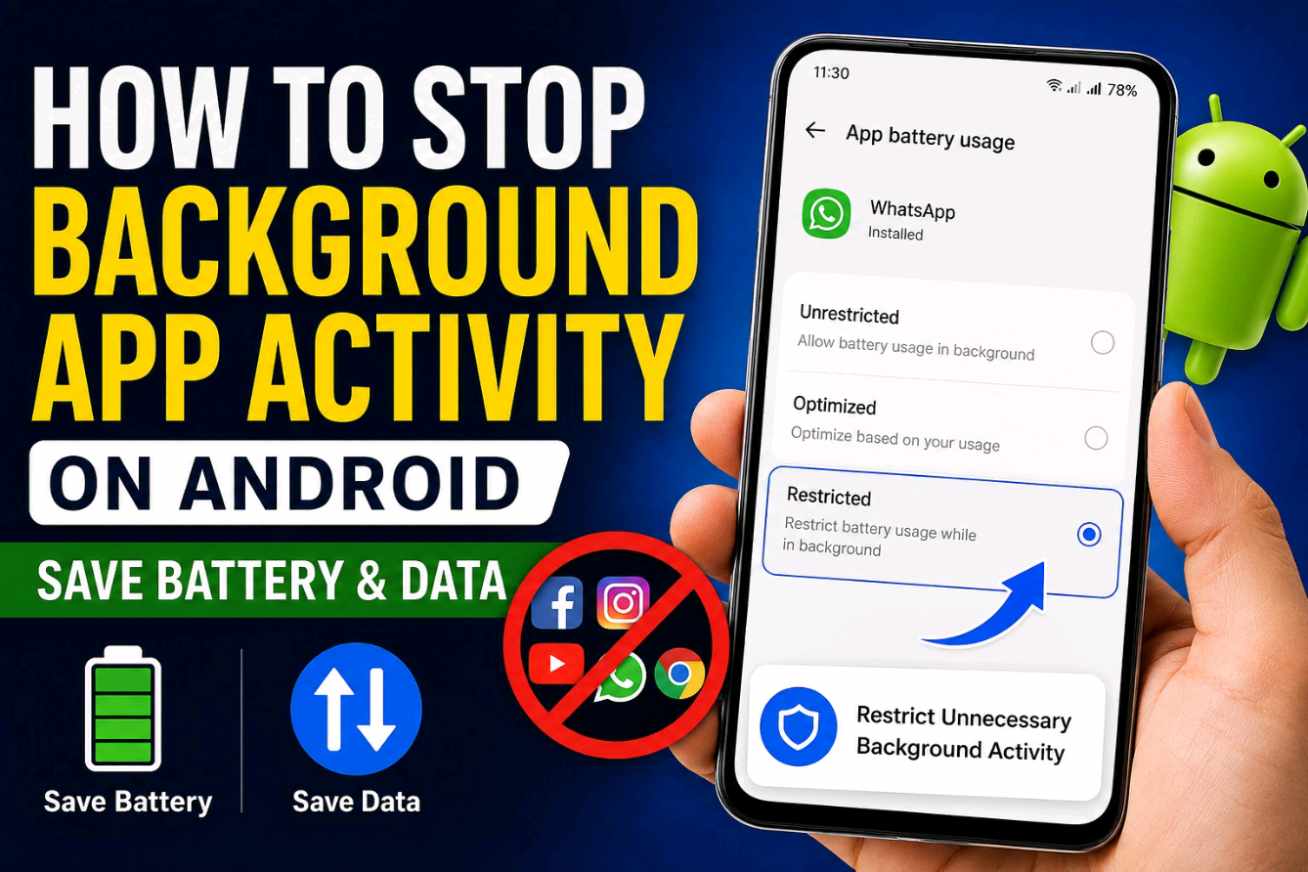
📱 How to Stop Background App Activity on Android and Save Battery
Is your phone battery draining quickly even when you are not using your smartphone? Are your mobile data charges increasing without any obvious reason? One possible reason is unnecessary background app activity.
Many Android applications continue performing certain tasks even when they are not open on your screen. They may use mobile data, synchronize information, check for updates, or refresh content in the background.
In this guide, you will learn how to stop background app activity on Android, how to restrict background data, and how to manage apps without affecting important phone functions.
🔍 What Is Background App Activity?
Background app activity refers to tasks performed by an application when you are not actively using it. Depending on the app, these activities may include synchronization, checking for new notifications, refreshing content, uploading data, or using network resources.
For example, email and messaging applications may need background activity to deliver new notifications. Social media applications may also refresh content in the background.
Background activity is not necessarily a problem. However, unnecessary activity from apps that you rarely use can contribute to battery and mobile data consumption.
⚡ Why Should You Restrict Background App Activity?
Restricting unnecessary background activity may help you:
✔ Reduce unnecessary battery consumption
✔ Control mobile data usage
✔ Reduce unwanted background processing
✔ Improve control over app activity
✔ Manage apps that consume excessive resources
⚙️ How to Stop Background App Activity on Android
The exact settings can vary depending on your Android version and smartphone manufacturer. However, the general process is similar on most Android phones.
Step 1: Open Settings
Open the Settings app on your Android smartphone.
Step 2: Open Apps
Look for Apps, Apps & Notifications, or a similar option.
Step 3: Select the App
Find the application whose background activity you want to manage and open its app information page.
Step 4: Open Battery Settings
Look for Battery, Battery Usage, or App Battery Usage.
Step 5: Restrict Background Activity
If your phone provides the option, select a setting such as Restricted to limit the app's background activity.
🔋 How to Find Apps That Use Too Much Battery
If you are unsure which apps are consuming your battery, open the battery section of your phone's settings.
A common path is:
Settings → Battery → Battery Usage
Here, you can review which applications have consumed the most battery. If an app that you rarely use is consuming an unusually large amount of battery, you can review its battery and background activity settings.
📶 How to Stop Background Data Usage
If your main concern is mobile data consumption, you can check the data usage settings for individual apps.
Depending on your smartphone, the option may be available under:
Settings → Network & Internet / Mobile Network → Data Usage → App Data Usage
Select an application and look for a Background Data or similar option. The exact menu name can differ between Android devices.
🚫 Should You Stop Background Activity for Every App?
No. Restricting every app is usually unnecessary and can affect how certain applications work.
For example, messaging, email, security, and other important applications may rely on background activity for timely notifications or synchronization.
A better approach is to identify apps that you rarely use or that consume excessive battery or mobile data and then review their background settings individually.
📱 Why Are Android Settings Different on Samsung, Xiaomi, Realme and Other Phones?
Android is used by many smartphone manufacturers, but each manufacturer may customize the operating system interface. Therefore, settings can look different on Samsung Galaxy, Xiaomi, Redmi, POCO, Realme, Vivo, OPPO, and OnePlus smartphones.
If you cannot find the required option, use the search box inside Settings and search for terms such as Battery Usage, Background Activity, Background Data, or App Battery Usage.
⚠️ What Happens When You Restrict Background Activity?
When background activity is restricted, some applications may not refresh automatically while you are not using them.
Depending on the app and the restriction applied, notifications may arrive later, synchronization may be delayed, or certain background features may not work until you open the application.
For this reason, avoid restricting important apps unless you understand the effect of the setting.
💡 5 More Ways to Improve Battery Life
1. Uninstall Unused Apps: Remove applications that you no longer need.
2. Check Battery Usage: Regularly review which apps are consuming the most battery.
3. Control Unnecessary Notifications: Turn off notifications that you do not need.
4. Review Sync Settings: Check automatic synchronization for accounts and services you rarely use.
5. Keep Your Phone Updated: Install official system updates when they are available for your device.
❓ Frequently Asked Questions
What is background app activity?
It is the activity performed by an application when you are not actively using it, such as synchronization, notifications, content refresh, or network communication.
Does stopping background activity save battery?
Restricting unnecessary background activity can reduce battery consumption in some situations. The actual result depends on the application, smartphone, and your usage pattern.
Will stopping background data stop notifications?
For some applications, restricting background data may delay notifications or automatic updates.
How can I check background app activity?
Open your phone's Battery Usage, Apps, or App Battery Usage section to review individual applications.
🎯 Final Words
Managing background app activity is a simple way to get better control over battery and mobile data usage. Instead of restricting every application, identify unnecessary or resource-heavy apps and adjust their settings individually.
Remember that Android menus can vary depending on the smartphone brand, Android version, and software interface. If an option is not available in exactly the same location, use the Settings search function to find the relevant battery or background-data setting.