
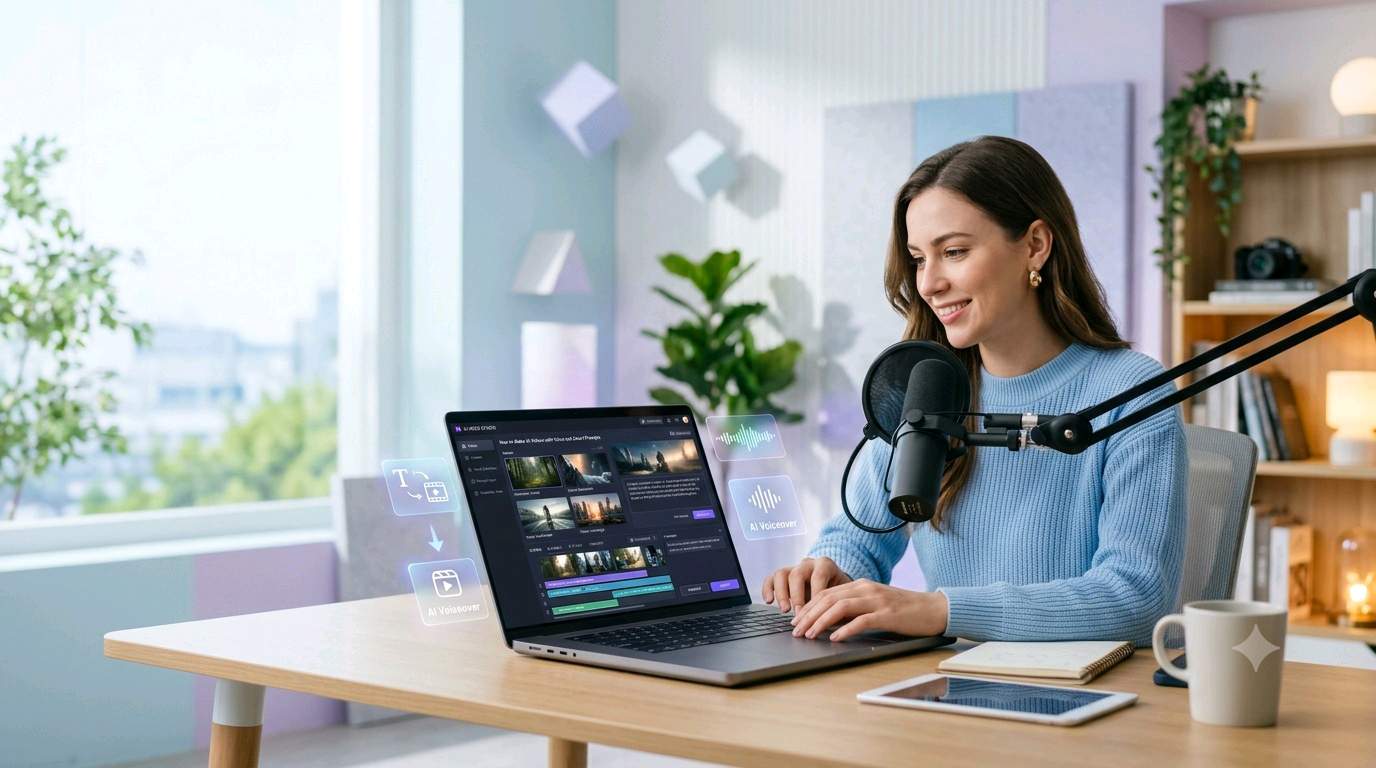
Create scenes, generate visuals, add voiceovers and turn a simple idea into an engaging AI video.
Artificial intelligence has made video creation much easier. You no longer need advanced video-editing skills to create an attractive short video, educational clip, product presentation, storytelling video or social media content. With the right AI video tools, voiceover, script and prompt, a simple idea can be transformed into a complete video.
The most important part, however, is not simply choosing an AI tool. The quality of your final video depends heavily on how clearly you describe your idea. A good prompt tells the AI what should appear in the scene, what the camera should do, what the lighting should look like and what mood the video should create.
1. Start With a Clear Video Idea
Before opening an AI video generator, decide exactly what you want to create. A common mistake is writing a very broad instruction such as "Make a beautiful video about technology." This gives the AI too much freedom and may produce inconsistent results.
Instead, define the subject, audience, duration, visual style and purpose of the video.
Topic: How AI is changing education
Audience: Students and general viewers
Duration: 30–45 seconds
Style: Modern, realistic and inspirational
Format: Vertical video for mobile viewing
This basic information gives you a strong foundation for writing the actual prompt.
2. How to Write a Good AI Video Prompt
A strong AI video prompt should describe the scene in a structured way. You can think of a prompt as instructions given to a virtual filmmaker.
A Simple Prompt Formula
Subject + Action + Location + Camera + Lighting + Style + Mood + Quality + Format
For example, instead of writing:
write something more detailed:
3. Create the Video Scene by Scene
For better results, do not try to generate an entire complex video from one giant prompt. Break the story into small scenes.
Example: 30-Second AI Video
A modern city at sunrise, people beginning their day, cinematic establishing shot, soft morning light, realistic style.
A student sitting at a desk looking confused while studying several books, natural classroom environment, medium camera shot, realistic expressions.
The student opens a laptop and uses an AI learning assistant, the screen displays organized study information, smooth camera movement, bright modern atmosphere.
The student confidently studies and takes notes, warm natural lighting, positive expression, cinematic close-up, inspirational mood.
These individual scenes can then be arranged in a video editor to create a much more controlled final result.
More Useful Articles
- Loading related posts...
4. How to Add Voice to an AI Video
A good visual alone is not always enough. A clear voiceover can make the video easier to understand and more professional.
There are several ways to add narration:
Method 1: AI Text-to-Speech
Write your script and use a text-to-speech feature available in your chosen video or audio tool. Select an appropriate voice, language, speed and tone.
Method 2: Record Your Own Voice
You can record your narration using a phone or computer microphone and then place the audio over the generated video. This can make the content feel more personal.
Method 3: Generate the Voice Separately
You can create the narration as an audio file first and then import it into a video editor. This approach gives you more control over timing and scene changes.
5. How to Write a Video Voiceover Script
Your visual prompt and voiceover script should support each other. The narrator should not describe something that is missing from the video.
“Artificial intelligence is changing the way we learn. Students can use AI tools to organize information, understand difficult concepts and explore new ideas. Used responsibly, AI can become a helpful learning companion.”
Notice that the narration is short and easy to understand. It does not contain unnecessary information that could make a short video feel crowded.
6. Complete Example: Creating an AI Educational Video
Suppose you want to create a short video titled “How AI Helps Students Learn”.
Step 1: Write the Concept
Step 2: Create the Visual Prompt
Step 3: Divide It Into Scenes
Scene 1: Student reading a difficult textbook.
Scene 2: Student opens a laptop and searches for help.
Scene 3: AI assistant organizes the information.
Scene 4: Student understands the concept and writes notes.
Scene 5: Final inspirational shot with the student continuing to study.
Step 4: Prepare the Voiceover
Step 5: Add Background Music
Choose soft background music that matches the subject. For educational videos, calm and unobtrusive music generally works better than music that competes with the narration.
Step 6: Synchronize Everything
Place the generated scenes on the timeline. Add the voiceover first, then adjust each visual scene to match the narration. Finally, add background music at a lower volume and check the complete video before exporting.
7. Prompt Mistakes You Should Avoid
Too Short
Weak: “Make a futuristic AI video.”
This does not explain the subject, action, camera, environment or visual style.
Too Confusing
Do not place several unrelated ideas into the same scene. Give the AI one clear visual objective at a time.
Changing the Character Between Scenes
If your video contains the same person across multiple scenes, keep important character details consistent. Mention the same approximate clothing, setting and appearance characteristics in each prompt.
Ignoring Camera Movement
Words such as wide shot, close-up, slow camera movement, tracking shot or static camera can help communicate how you want the scene presented.
Adding Too Much Text to the Video
Keep on-screen text short and readable. Use the voiceover to provide additional information.
8. How to Make AI Videos Look More Professional
Professional-looking AI videos are usually the result of good planning rather than a single magical prompt.
Keep a consistent visual style: Use similar descriptions for lighting, environment and overall appearance.
Use short scenes: Short scenes are easier to control and replace if one generation does not look right.
Match the narration: Scene transitions should happen naturally with the voiceover.
Use readable captions: Captions can help viewers understand the message even when sound is turned off.
Check the final video: Watch the entire video before publishing. Look for unnatural movements, incorrect text, sudden scene changes and audio problems.
9. A Reusable AI Video Prompt Template
10. Simple AI Video Workflow for Beginners
Frequently Asked Questions
Can beginners create videos with AI?
Yes. Beginners can create AI videos by starting with a simple script, generating short scenes and combining them with voiceover and music.
What makes an AI video prompt good?
A good prompt clearly explains the subject, action, environment, camera movement, lighting, style, mood and video format.
How can I add a voice to an AI video?
You can use text-to-speech, record your own narration or generate the voice separately and import the audio into a video editor.
Should I create the entire video with one prompt?
For complex videos, creating separate scenes is usually easier to control. Each scene can have its own visual prompt while maintaining a consistent style.
How long should an AI video prompt be?
There is no universal ideal length. The prompt should contain enough useful information to communicate the scene without adding irrelevant details.
How can I make AI voiceovers sound natural?
Use short sentences, appropriate pauses and a voice that matches the video's subject. Always listen to the complete narration before final editing.
Final Conclusion
Creating a good AI video is a combination of creative planning, strong prompts, suitable visuals, clear narration and careful editing. You do not need to generate everything in one step. Start with an idea, turn it into a short script, divide the story into scenes, create focused prompts, add a suitable voice and finally combine everything in an editor.
The biggest improvement usually comes from better instructions. Instead of telling AI only what your video is about, explain what should appear, what should happen, how the camera should move and what mood the viewer should feel. With practice, you can turn simple ideas into engaging educational, storytelling, promotional and social-media videos.
Disclaimer
This article is provided for general educational and informational purposes. AI video generators, voice tools and editing features can change over time, and different services may have different terms, limitations, pricing, copyright rules and usage policies. Always review the applicable terms of the tool you use and make sure you have the necessary rights or permission for any images, audio, voices, music, characters or other material included in your video.