
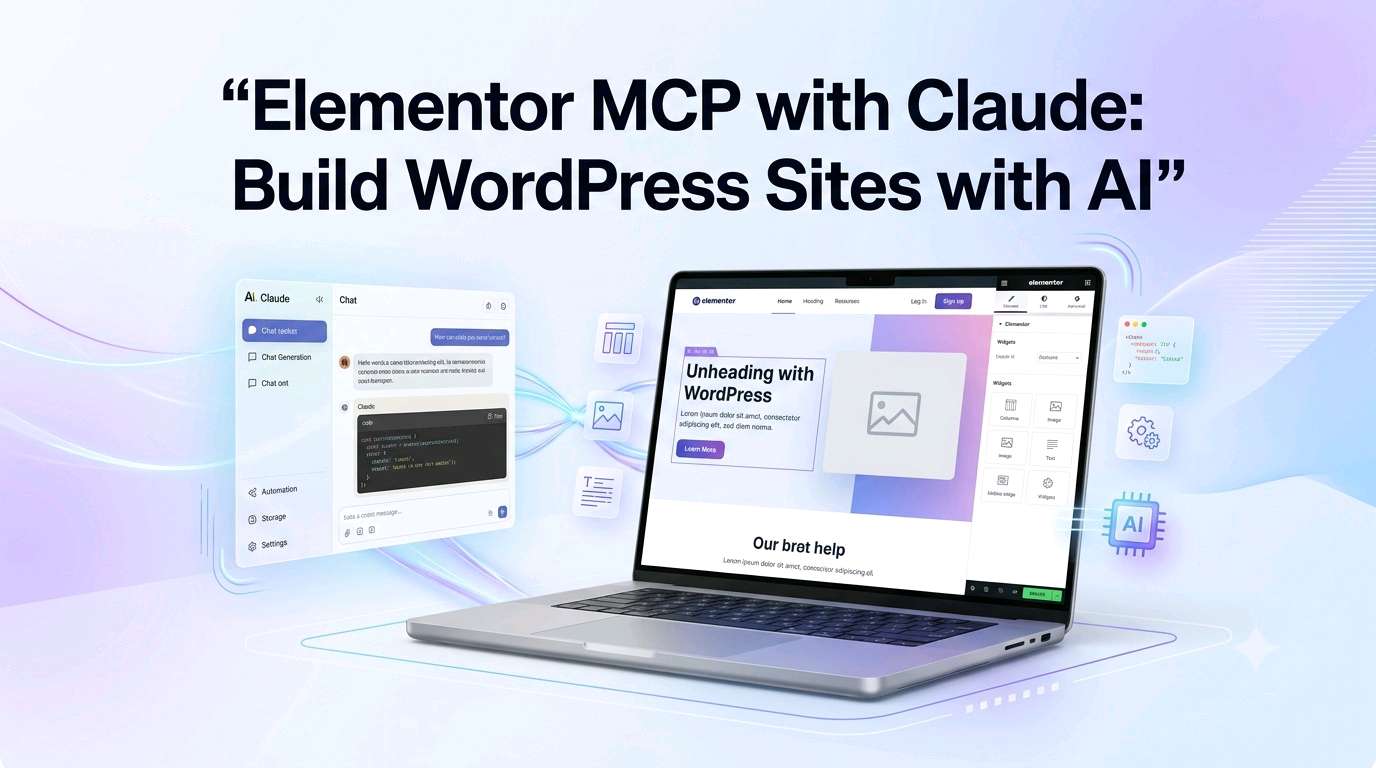
Want to build a professional WordPress website without writing everything manually? Elementor MCP combined with Claude can make this process much easier by allowing you to describe what you want in natural language and then letting AI work with Elementor to create, modify, and improve website elements. From headers and footers to contact forms, search areas, templates, filters, animations, and responsive layouts, the workflow can turn a conversation into a practical website-building process.
Elementor MCP with Claude: Build WordPress Websites Using AI
Traditional website creation often requires knowledge of WordPress, Elementor, CSS, JavaScript, design principles, responsive layouts, and sometimes custom coding. Elementor MCP changes the workflow by allowing an AI assistant such as Claude to interact with a WordPress website using Elementor.
Instead of manually creating every section, you can explain your requirements, provide screenshots or reference images, and ask the AI to make the changes. The transcript demonstrates this approach through a complete website-building experiment involving WordPress, Elementor Pro, Claude, screenshots, templates, custom post types, contact forms, search, responsive design, and animations.
The important idea is not that AI completely replaces website development. Rather, it acts as a conversational website-building assistant that can understand instructions and perform many Elementor-related tasks while you review the result.
Main Topics
What Is Elementor MCP?
Elementor MCP is a way to connect an AI workflow with Elementor and WordPress so that website-building tasks can be controlled through natural-language instructions. In the demonstrated workflow, Claude is connected to a WordPress website using Elementor Pro and an MCP setup prompt.
Once the connection is established, the user can tell Claude what needs to be created or changed. For example, instead of manually designing a hero section, the user can provide a screenshot and say that the new section should match its colors, icons, fonts, spacing, and layout.
This creates a different approach to website design: describe → generate → inspect → correct → improve.
Simple idea: You don't have to describe how to code an effect. You can describe the result you want, and the AI can determine an appropriate Elementor-based implementation.
What Do You Need to Build a Website with Elementor MCP?
The demonstrated workflow uses several components. Some are optional depending on the type of website you want to create.
- Domain name: The web address visitors use to reach your website.
- Web hosting: The server where WordPress, images, pages, posts, and other website files are stored.
- WordPress: The content management system used for the website.
- Elementor: The visual website builder used to create layouts.
- Elementor Pro: Used in the demonstration for advanced website-building capabilities, including headers, footers, theme-building features, and additional widgets.
- Claude: The AI assistant used to interpret natural-language instructions.
- Claude Code: Used in the demonstrated MCP connection workflow.
- Reference screenshots: Useful when you want the AI to reproduce an existing visual design.
The transcript specifically explains that a domain is the address of a website, while hosting is the server where the website's files and related content are stored.
Why Screenshots Are Important for AI Website Design
One of the most interesting parts of this workflow is the use of screenshots as visual instructions.
Instead of writing a long explanation about every design detail, you can capture an existing website section and give the image to Claude. You can then explain what you want to reproduce.
For example, you can ask the AI to recreate:
- A homepage hero section
- A website header
- A footer
- A blog post layout
- A contact page
- A search-results design
- A tutorial archive
- A knowledge-base page
- Mobile navigation
- Animation and interactive cards
The transcript demonstrates cropping website sections, saving them as reference images, uploading them, and asking Claude to recreate the visual structure using Elementor.
How the Elementor MCP and Claude Workflow Works
The process can be understood as a series of simple steps.
1. Prepare WordPress
Start with a working WordPress website. Clean unnecessary content and configure the basic settings. In the demonstrated workflow, unnecessary plugins, sample posts, and sample pages were removed before building the new website.
2. Install Elementor
Elementor provides the visual building environment. The workflow uses the Hello Elementor theme and Elementor Pro for more advanced features.
3. Prepare Claude
Claude is used as the conversational AI assistant. The transcript demonstrates using a paid Claude plan for the workflow and opening Claude on the computer.
4. Enable the MCP Workflow
The demonstrated process enables the relevant Elementor MCP functionality and generates a setup prompt containing the information needed to connect Claude with the WordPress website.
5. Connect Claude with WordPress
The setup prompt is used inside Claude Code. Once the connection works, Claude can interact with the Elementor-powered WordPress environment.
The transcript describes this moment as creating a link between Claude and the WordPress website so Elementor-based website tasks can be performed through conversation.
6. Give Clear Instructions
This is one of the most important lessons from the demonstration. The quality of the result depends heavily on how clearly you explain the desired outcome.
A vague instruction may produce a result that is technically functional but visually different from what you expected. A detailed prompt can include colors, spacing, alignment, animation timing, device behavior, fonts, image sources, and interaction requirements.
What Can You Create with Elementor MCP?
The demonstrated website shows how many different areas can be created or modified through conversational instructions.
AI-Generated Hero Sections
You can provide a screenshot of a hero section and ask Claude to recreate it. The example included multiple sections, overlapping content, images, buttons, icons, and animated statistics.
Interactive Cards
The website included three cards that respond to the position of the mouse pointer. Claude was instructed to make the cards point toward the cursor rather than simply react when the pointer was directly over an individual card.
This demonstrates an important advantage of conversational AI: you can describe the behavior instead of manually designing every interaction.
Responsive Website Design
A modern website must work across desktop computers, tablets, and smartphones. The demonstrated workflow included separate adjustments for desktop, tablet, and mobile layouts.
For example, the user asked for mobile and tablet menu changes while preventing a particular desktop-style 3D effect from appearing on smaller devices.
Good practice: Always test AI-created pages on multiple screen sizes. A design that looks excellent on desktop may still need adjustments on mobile or tablet.
Headers and Navigation
Claude can help reproduce a header from a reference image, create menu items, adjust spacing, change colors, and make the header sticky.
The transcript demonstrates creating pages for menu items and adding sub-items under a recommended section. It also shows adjusting the mobile menu and search behavior.
Blog Post Templates
Another useful application is creating a reusable single blog post template. Instead of designing every article individually, you can create one template that controls the appearance of posts.
The demonstrated design included a featured image, metadata, comments, advertisement areas, and related posts.
Custom Post Types and Knowledge Bases
For a larger website, ordinary blog posts may not be enough. The workflow also explored tutorials, recommended resources, and knowledge-base content.
Advanced content structures can require additional WordPress tools and manual setup. The transcript specifically mentions using ACF for custom fields and custom post types, while noting that this part still required manual work.
Filters for Tutorials and Content
Once structured content exists, you can create archive pages with filters. For example, tutorials can be filtered by category or topic.
This is particularly useful for websites containing:
- Online tutorials
- Knowledge-base articles
- Software resources
- Recommended tools
- Educational content
- Product collections
Contact Forms
AI can also help create a customized contact page. In the demonstrated example, the form contained fields such as name, email, phone number, question type, message, and a conditional budget field.
The budget field appeared depending on the selected option. The form was also connected so submitted information could arrive by email.
Search Functionality
A website with lots of tutorials or articles benefits from search. The demonstrated workflow created a search interface and customized the search-results page to display selected content types, including knowledge items, tutorials, and blog posts.
Cookie Notices and Privacy Pages
The transcript also demonstrates creating disclaimer, cookie-policy, and affiliate-disclaimer pages and adding a cookie-notice system with different privacy behavior based on the visitor's location.
However, website owners should independently verify privacy and cookie requirements for the jurisdictions in which their visitors are located. AI-generated compliance content should not automatically be treated as legal advice.
Elementor MCP vs Traditional Website Building
| Traditional Workflow | AI-Assisted Workflow |
|---|---|
| Manually create sections | Describe sections in natural language |
| Manually adjust many settings | Ask AI to make specific changes |
| Write custom code for some effects | Ask AI for an implementation when appropriate |
| Explain visual design using words | Provide screenshots as visual references |
| Repeat similar template work | Create reusable templates |
| Manually troubleshoot every change | Use conversation-based iteration |
What Makes Conversational Website Building Different?
The biggest change is the interaction model. Instead of thinking only in terms of widgets and settings, you can think in terms of desired outcomes.
For example, you might say:
- “Make this heading smaller.”
- “Move the image to the right.”
- “Make the cards respond to the cursor.”
- “Create a mobile menu based on this screenshot.”
- “Use the same visual style throughout the website.”
- “Create a contact form with a conditional budget field.”
- “Make the archive page look like this reference.”
The transcript repeatedly follows this iterative process: make a request, inspect the result, identify what is wrong, provide another instruction, and refine the website.
Why Clear Prompts Matter
AI website building does not mean that every result will be perfect on the first attempt. The demonstration itself shows several situations where an effect, alignment, template, or interaction needed another adjustment.
This leads to a practical rule:
Don't simply say “make it better.” Explain exactly what should change, where it should change, and what should remain unchanged.
A useful website prompt can mention:
- Exact position
- Spacing
- Font size
- Colors
- Animation timing
- Desktop behavior
- Tablet behavior
- Mobile behavior
- Image source
- Interaction behavior
- Elements that must not be changed
Can Non-Coders Build Websites with Elementor MCP?
Yes, the workflow can make website creation much more accessible to people who are not professional programmers. The transcript's creator explicitly describes being impressed by the ability to create sophisticated layouts and interactions through conversation rather than traditional coding.
However, “no coding required” should not be confused with “no technical knowledge required.” You still need to understand WordPress basics, website structure, hosting, security, plugins, content organization, SEO, responsive design, and testing.
AI can reduce the amount of manual work, but the website owner remains responsible for reviewing the result.
Important Limitations and Things to Watch
AI-assisted website creation is powerful, but it is not perfect. The transcript itself shows several practical limitations.
- Some tasks still require manual work.
- Some generated layouts may need correction.
- Custom post types may require additional configuration.
- Some JavaScript or custom code may still be necessary.
- Templates must be assigned correctly in WordPress.
- AI may misunderstand vague instructions.
- Visual comparison and testing are still important.
- Advanced functionality may require knowledge of Elementor and WordPress.
The transcript also demonstrates a situation where Elementor became stuck because particular post types needed to be enabled in Elementor settings. After correcting the configuration, the tutorial content could be displayed properly.
How Much Can an AI Website Workflow Cost?
The transcript gives a specific cost estimate for the particular experiment, but those figures should not be treated as universal website-development prices. Costs depend on hosting, Elementor licensing, AI subscriptions, domain registration, additional plugins, development time, and the complexity of the website.
The more important lesson is that AI can potentially reduce the amount of manual development work required for certain website-building tasks.
Remember: A low software cost does not automatically mean a website has zero development cost. Planning, content creation, testing, SEO, maintenance, security, performance optimization, and troubleshooting still require time and expertise.
Best Use Cases for Elementor MCP
This workflow can be especially interesting for people building:
- Personal websites
- Portfolio websites
- Business websites
- Agency websites
- Blogging websites
- Tutorial websites
- Knowledge bases
- Educational websites
- Affiliate websites
- Content-heavy WordPress websites
It can also be useful for designers who want to experiment quickly with different layouts without manually recreating every element.
How to Get Better Results from Claude
If you want a smoother Elementor MCP workflow, follow these practical tips:
- Start with a clear website structure. Decide your main pages before asking AI to build everything.
- Use screenshots for visual references. Images can communicate design details faster than long descriptions.
- Make one major change at a time. This makes troubleshooting easier.
- Explain responsive behavior. Tell Claude what should happen on desktop, tablet, and mobile.
- Review every result. Never assume that an AI-generated change is perfect.
- Keep backups. Website changes can sometimes produce unexpected results.
- Use reusable templates. Templates make large websites easier to maintain.
- Learn basic Elementor controls. Manual knowledge becomes useful when AI needs help.
Elementor MCP and the Future of WordPress Website Design
The demonstrated workflow suggests an interesting direction for WordPress development. Instead of website builders being used only through visual drag-and-drop controls, AI can become another interface for interacting with the website.
You can imagine a future workflow where a website owner says what they want, provides a reference image, reviews the result, and continues refining it through conversation.
This does not necessarily mean traditional web development will disappear. Instead, AI can become a productivity layer between the website owner and the tools used to build the website.
The transcript's final website included reusable templates, filters, knowledge content, tutorials, blog posts, search, contact functionality, responsive layouts, animations, and other features.
Frequently Asked Questions
What is Elementor MCP?
Elementor MCP is a workflow that allows an AI assistant to interact with Elementor and WordPress so website-building and editing tasks can be performed through natural-language instructions.
Can Claude build a WordPress website with Elementor?
Yes. The demonstrated workflow shows Claude being connected to a WordPress website using Elementor and then used to create and modify pages, templates, forms, navigation, search, animations, and other website elements.
Do I need Elementor Pro?
The demonstrated workflow uses Elementor Pro for advanced capabilities. Some basic Elementor tasks may be possible with the free version, but available features can differ.
Can I use screenshots with Claude?
Yes. Screenshots can be used as visual references to communicate layouts, colors, spacing, typography, and design styles more clearly.
Can Elementor MCP create responsive websites?
The demonstrated workflow includes desktop, tablet, and mobile adjustments. However, every AI-created website should still be manually tested across different screen sizes.
Can AI create contact forms?
Yes. The example shows a contact form with multiple fields and conditional budget fields that change depending on the user's selection.
Can AI create blog templates?
Yes. The workflow demonstrates creating a reusable single blog post template with content, featured images, metadata, comments, advertisement areas, and related content.
Does Elementor MCP eliminate coding completely?
No. Many tasks can be handled through natural-language instructions, but advanced websites may still require manual Elementor configuration, custom code, plugin settings, troubleshooting, and technical knowledge.
Is AI website creation suitable for beginners?
It can make website creation easier for beginners, but understanding WordPress, Elementor, hosting, security, SEO, and responsive design remains valuable.
Conclusion
Elementor MCP with Claude represents a powerful conversational approach to WordPress website development. Instead of manually performing every design and configuration task, you can explain what you want, provide screenshots when necessary, review the generated result, and continue improving it through additional instructions.
The most valuable lesson from the demonstrated workflow is that AI works best as a website-building partner rather than an automatic replacement for human judgment. Clear instructions, visual references, testing, and manual corrections remain important.
For bloggers, designers, agencies, business owners, and WordPress users, this approach can make experimentation faster and reduce repetitive website-building work. As AI tools and Elementor continue to evolve, conversational website design could become an increasingly practical way to create sophisticated WordPress websites.
Disclaimer: This article is based on the provided tutorial transcript and explains the demonstrated Elementor MCP, Claude, WordPress, and Elementor workflow. Software features, pricing, compatibility, licensing, AI capabilities, and privacy or compliance requirements may change over time. Always verify current information from the relevant software providers before purchasing or implementing a solution. AI-generated website code and content should be reviewed and tested before being used on a live website.